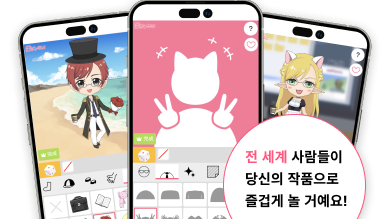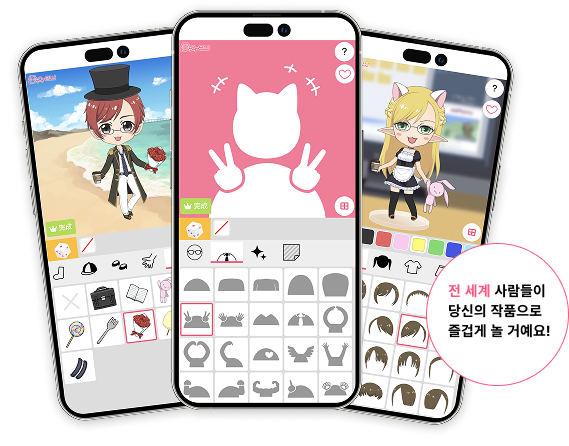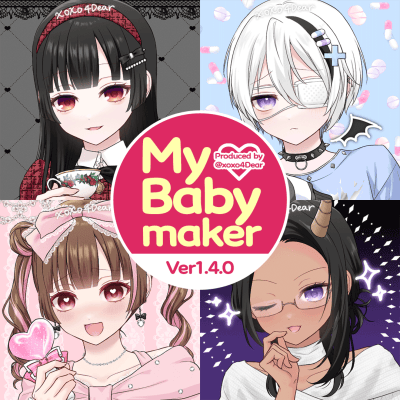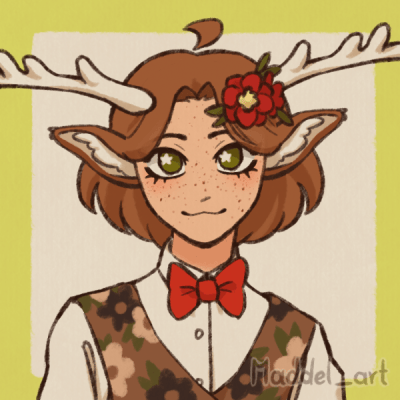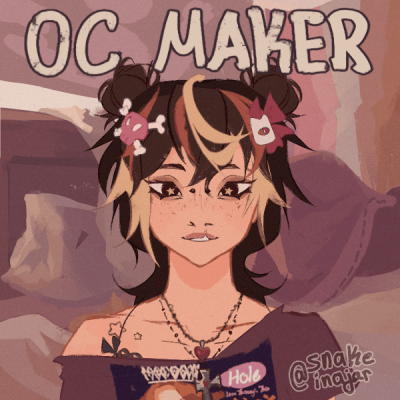
There are two ways to enjoy Picrew:“Create”and“Play
I want to make my own image maker...!
If you think so, please register as a creator!
※To become a creator, you must upgrade your account to creator (free of charge) after registering as a member.
How to create an image maker...?
-
Draw an illustration for your image maker!
For a 1:1 image maker, you will need a 600px x 600px image
For a 9:16 image maker, you will need a 540px x 960px image -
Register your created image materials with Picrew.
After registering, upgrade your account to Creator. Register your materials on the Creator screen.
Once the release is set up and published,
the image maker is complete!
※To become a creator, you must upgrade your account to creator (free of charge) after registering as a member.
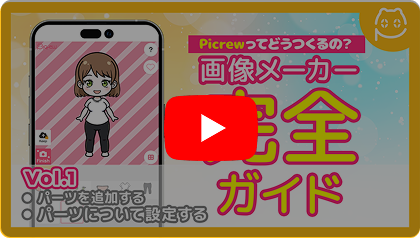
Explained in the video!
If you don't know how to make it, please refer to the video explanation of the easiest way!
-
The first step is to set up the parts.
Start by registering parts -
Next, the eye part settings.
Part icon settings are also available. -
Finally, set the release
Keep parts on when released!
※To become a creator, you must upgrade your account to creator (free of charge) after registering as a member.
FAQ
- How to register as a creator?
- If you are not a registered member of Picrew, please register as a new member. If you are already a registered member, please upgrade your account to a creator account (free of charge) to complete your creator registration. Please note that creator registration is only available on the web at this time.
- Does it cost money to register as a creator?
- No money is required. All creator features are free of charge.
- I don't know how to make an image maker.
- You can find instructions on how to create them on our support page and on YouTube!
- I forgot my password
- Please click the “Forgot Password” link on the login screen to reissue your password.
※To become a creator, you must upgrade your account to creator (free of charge) after registering as a member.